> ## Documentation Index
> Fetch the complete documentation index at: https://wundergraphinc-brendan-add-external-directive.mintlify.site/llms.txt
> Use this file to discover all available pages before exploring further.
# Groups
> Manage who can access the resources of your organization.
To create, modify or delete groups, you need have RBAC enabled for your organization. This feature is available starting on the Scale plan.
Groups allow you to manage teams, separate people access for specific resources and much more without managing them manually. Including the benefits of SCIM.
Groups can be linked to both your organization members and your [API Keys](/studio/api-keys), enabling flexible and centralized access management.
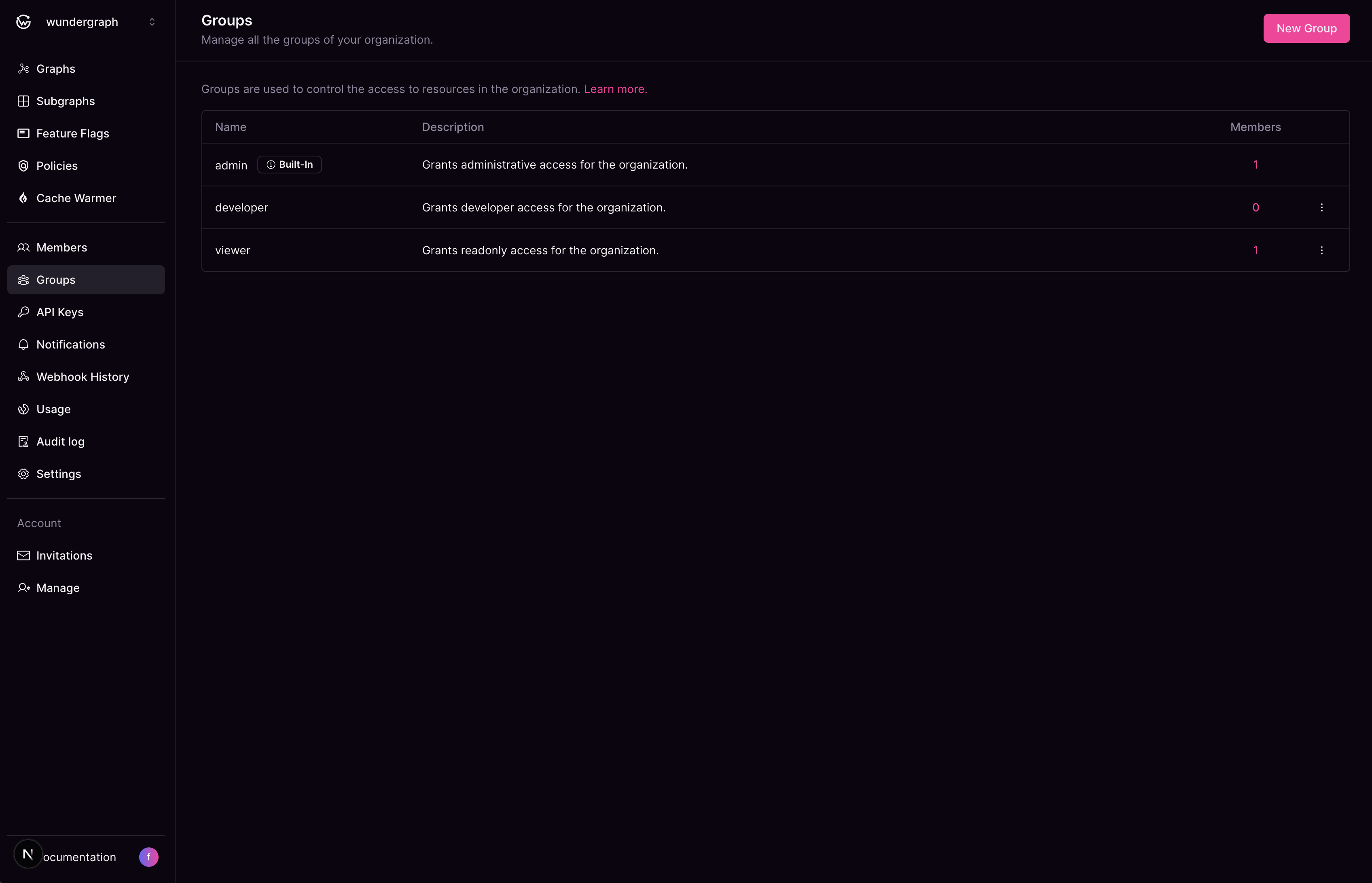 ### How to create a group
* Click on the New Group button.
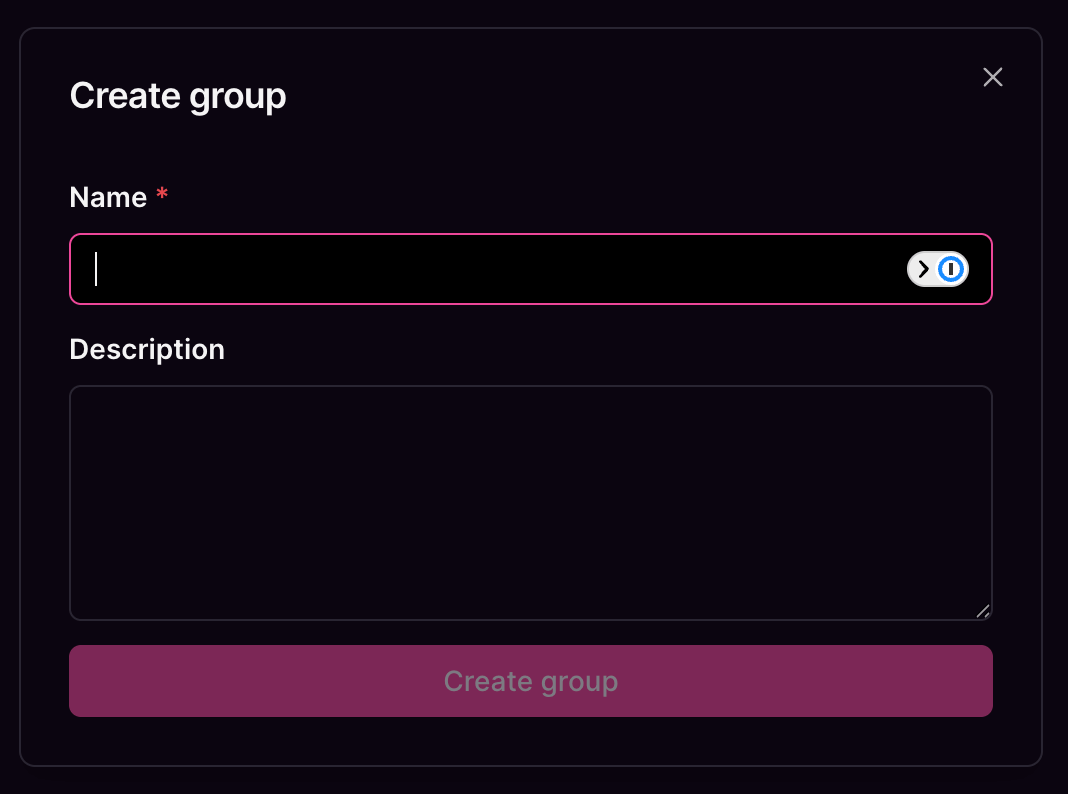
* Give the group a name, an optional description and then click on **Create group**.
### How to create a group
* Click on the New Group button.
* Give the group a name, an optional description and then click on **Create group**.
 Once the group has been created, the group modification screen will show up. Here you can configure the [group rules](/studio/groups/group-rules).
### How to modify a group
Groups marked as `builtin` cannot be modified.
* Click on the three dots to the right of the groups table and click **Edit**
To learn more about managing group rules refer to the [group rules](/studio/groups/group-rules) page.
### How to delete a group
Groups marked as `builtin` cannot be deleted.
To delete an existing group, click on the three dots to the right of the groups table and click **Delete**. From there, one of two scenarios may occur.
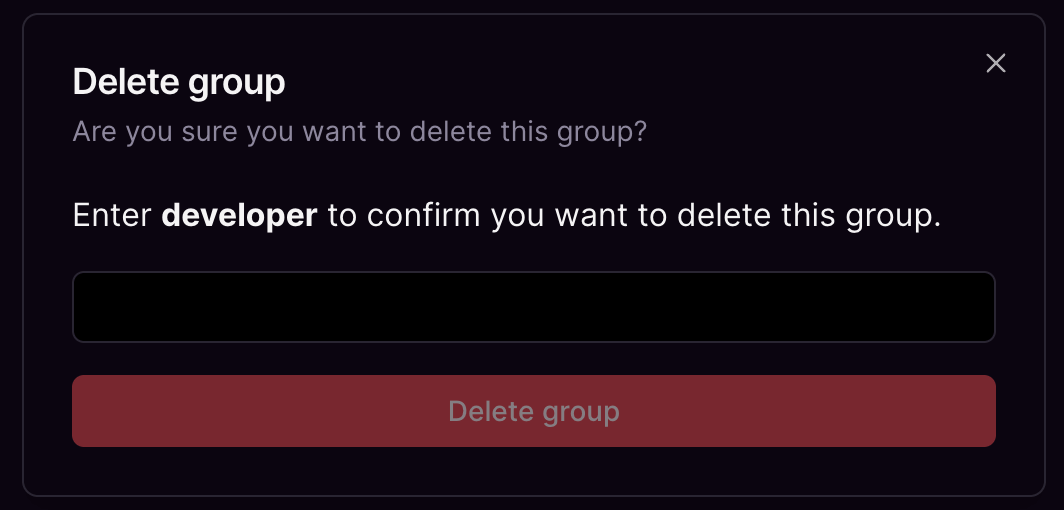
**Scenario 1**: The group have not been assigned to any member, API key and/or OIDC mapper.
This is the simplest scenario, as you'll only need to fill the confirmation input and press the **Delete group** button.
Once the group has been created, the group modification screen will show up. Here you can configure the [group rules](/studio/groups/group-rules).
### How to modify a group
Groups marked as `builtin` cannot be modified.
* Click on the three dots to the right of the groups table and click **Edit**
To learn more about managing group rules refer to the [group rules](/studio/groups/group-rules) page.
### How to delete a group
Groups marked as `builtin` cannot be deleted.
To delete an existing group, click on the three dots to the right of the groups table and click **Delete**. From there, one of two scenarios may occur.
**Scenario 1**: The group have not been assigned to any member, API key and/or OIDC mapper.
This is the simplest scenario, as you'll only need to fill the confirmation input and press the **Delete group** button.
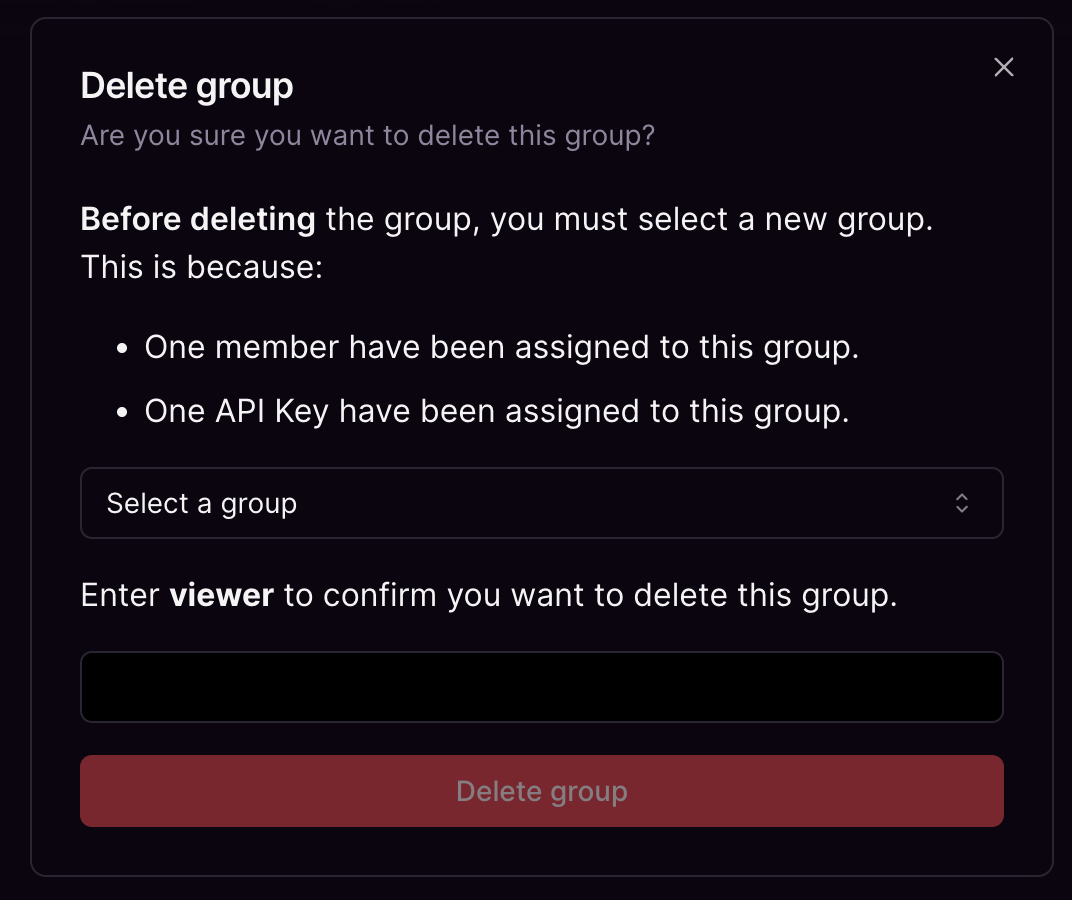
 **Scenario 2**: The group is being used by a member, API key and/or OIDC mapper.
For this scenario, you'll be shown what is using the group and you'll need to select a group to move the objects using the group to. After that, you'll just have to fill the confirmation and press the **Delete group** button.
**Scenario 2**: The group is being used by a member, API key and/or OIDC mapper.
For this scenario, you'll be shown what is using the group and you'll need to select a group to move the objects using the group to. After that, you'll just have to fill the confirmation and press the **Delete group** button.